Interactive Mode
Important
The Tabular Editor CLI is in Limited Public Preview. It is offered for evaluation with a Tabular Editor account; no license is required during preview. Commands, flags, and outputs may change before general availability. The preview build stops functioning after 2026-10-31. We recommend against using the CLI in production CI/CD pipelines during preview.
Interactive mode is a guided read-eval-print loop (REPL) for exploring a model from the terminal. It's the gentlest on-ramp for users who are new to command lines, and a convenient workspace for ad-hoc sessions against a single model.
Starting a session
To Start a session run any of these commands:
te interactive                              # Start and connect to a model later
te interactive --model ./model              # Start with a local model
te interactive -s MyWorkspace -d MyModel    # Start with a remote model
te interactive accepts a few flags for tuning the session:
--no-banner- skip the welcome banner on startup.--echo- echo each executed command to stdout before its output. Useful for logging when driving the REPL from a script.--batch- non-interactive batch mode: read commands from stdin line by line, execute each, and exit on EOF. Automatically enabled when stdin is redirected.--no-batch- force interactive TTY mode even when stdin is redirected (mutually exclusive with--batch).
The session prints a welcome banner, shows the active model, and opens you at a model-aware prompt:
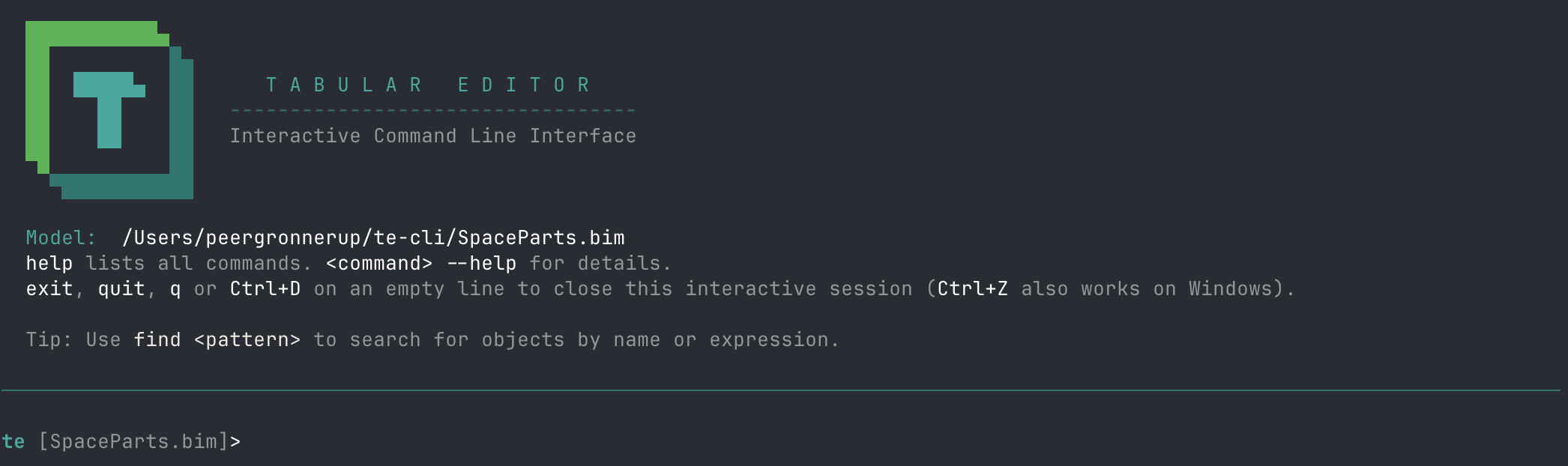
If no model is set, the prompt is just te> - simply use connect for connection picker, connect <path> or connect <workspace> <model> to connect to one.
Commands inside the session
Once a REPL has started, every te subcommand is available without the te prefix:
ls tables
get Sales/Revenue -p expression
query -q "EVALUATE TOPN(5, 'Sales')"
bpa run --fail-on error
Each command accepts --help the same way it does outside the session:
deploy --help
Quoting and DAX-style paths
The REPL line splitter recognises the same quoting forms as object paths so DAX-shaped references are interpreted as a single argument:
'...'and"..."- single- and double-quoted segments. The quote characters are stripped, doubled quotes escape a literal occurrence.[...]- bracketed segment. Brackets are preserved in the resulting argument so a path like'Internet Sales'[Sales Amount]reaches the command as one token that the path parser can re-interpret as a DAX reference. Doubled closing brackets (]]) stay verbatim for the same reason.
get 'Internet Sales'[Sales Amount]   # One argument, DAX form
get [Total Sales]                    # Lone-bracket model-wide lookup
ls 'Net Sales'/'Sales Amount'        # Quoted segments with a slash separator
Unterminated groups absorb to end of line, so a stray opening quote or bracket fails with an explicit error rather than splitting silently.
Built-in REPL commands
These are handled by the REPL itself, not the regular command tree:
| Command | Purpose |
|---|---|
help or ? |
List available commands. |
status or pwd |
Show the active model/connection. |
save |
Commit all staged in-memory edits back to the model source. |
revert |
Discard all staged edits made since the last save. |
clear or cls |
Clear the screen. |
exit, quit, or q |
Exit interactive mode. |
save inside the session takes no arguments - re-serializing the model to another format or location is save-as (e.g. save-as -o ./out --serialization bim), exactly as outside the session.
Staged edits
Inside the session, mutating commands (set, add, remove, move, script, macro run, ...) stage their changes in memory instead of writing to the source, and the prompt shows an indicator while unsaved staged edits exist. The built-in save command commits everything staged; revert discards everything staged.
Each mutating command can also decide for itself: --save persists that one command's change immediately, --stage keeps it in memory (the default), and --revert rolls the command's change back after showing its effect - useful for a "what would this do?" probe. The three are mutually exclusive, and --stage/--revert exist only inside the session.
The default per-command behavior is the interactiveEditMode config key (stage | save | revert) - see Custom Configuration.
Line editing and keys
The prompt offers single-line editing: arrow keys move the caret, Home/End (also Ctrl+A/Ctrl+E) jump to the ends, Backspace/Delete edit in place. Up/Down browse the command history, which persists across sessions. Ctrl+C cancels the current command without leaving the session; Ctrl+D on an empty prompt exits (Ctrl+Z then Enter on Windows). There is no tab completion inside the session - shell completion via te completion applies to the outer shell only.
Guided prompts
When interactive mode is active, commands that need missing input prompt for it instead of failing. Running auth without a subcommand opens a picker for Login / Status / Logout; running deploy --execute without --force shows a summary and asks for confirmation (n is the safe default). A deploy without --execute is a dry run that prints the TMSL the deployment would send, so it never prompts.
To disable prompts for a single command inside the session, pass --non-interactive.
Piped and redirected input
Interactive mode also accepts piped or redirected stdin, so the same REPL can be driven from a script instead of typed by hand. Each line of input is run as a command, exactly as if you had entered it at the prompt, and the session exits when input is exhausted (or when it reaches an exit line).
printf "ls\nexit\n" | te interactive --model ./model    # bash / git-bash
te interactive --model ./model < script.te              # redirected file
(echo ls & echo exit) | te interactive --model .\model :: Windows cmd.exe
The - stdin convention (set -p Expression=-, query -q -, and so on) is refused inside the interactive session, because the session itself owns stdin - use it from the outer shell instead.
Lines that start with # are treated as comments and skipped, so you can annotate a script file:
# script.te - inspect the model, then exit
ls tables
ls measures
exit
Batch mode and exit codes
When stdin is piped, --batch is the default: the session stops at the first command that fails and exits with a non-zero code, which makes a piped run safe to use as a build or CI step. Pass --no-batch to keep running the remaining lines even after a command fails. The process exit code is 0 for a clean run and non-zero when a command fails under batch mode.
# Default when piped: stop at the first failing command, exit non-zero
printf "bpa run --fail-on error\ndeploy --execute --force\nexit\n" | te interactive --model ./model

# Run every line regardless of failures
printf "bpa run --fail-on error\ndeploy --execute --force\nexit\n" | te interactive --model ./model --no-batch
Readable transcripts
--echo writes each input line to stdout ahead of its output, which is handy when capturing a transcript of a piped run. Comment lines are not echoed.
printf "ls tables\nexit\n" | te interactive --model ./model --echo
Options
| Option | Description |
|---|---|
--no-banner |
Suppress the welcome banner. |
--echo |
Echo each input line to stdout (useful for piped transcripts). |
--batch |
Exit non-zero on the first failing command (default when stdin is piped). |
--no-batch |
Continue after errors even when stdin is piped. |
Welcome banner vs. preview notice
Two separate messages can appear at the start of a session - don't conflate them:
- The welcome banner is the interactive splash described under Starting a session. It is suppressed with
--no-banner. When stdin is piped, no welcome banner is emitted in the first place, so--no-bannerhas a visible effect only in a true interactive (TTY) session. - The preview-expiry notice (
This is an early preview release ...) is a different message. It is always written to stderr and is not affected by--no-banner. Suppress it withte config set hidePreviewNotice true.
Auto-launch on empty invocation
Running te in a terminal with no arguments drops you straight into the interactive REPL, so exploring a model is as fast as opening a shell and typing te. When stdin, stdout, or stderr is redirected (piped output, CI pipelines, scripts), the CLI falls through to its normal parse and prints help instead - so shell scripts that invoke te without a subcommand keep behaving the same way.
The behavior is controlled by the launchInteractiveMode config key with three values:
| Value | Effect |
|---|---|
auto (default) |
Launch the REPL only when all three streams are attached to a TTY. Otherwise fall through to normal parse. |
always |
Launch the REPL regardless of stream redirection. Useful when you always want an interactive session. |
never |
Never auto-launch the REPL. te on its own prints help. |
Change it globally with:
te config set launchInteractiveMode never    # keep the classic help-on-empty behavior
te config set launchInteractiveMode auto     # restore the default
Override for a single invocation via the TE_INTERACTIVE environment variable (same values), or pass --non-interactive on the command line - both force never for that call, so te --non-interactive prints help instead of launching the REPL.
When to use interactive vs. non-interactive
- Interactive mode is best for exploration, learning the CLI, one-off bulk edits against a single model, and demos.
- Non-interactive mode (the default outside
te interactive) is what you reach for when scripting, automating, or running in CI. See Automation and Scripting and CI/CD Integration.
The two share the same command tree - anything you run inside te interactive can be pasted into a shell script by prefixing it with te.
Related pages
- Command Reference - full command reference.
- Authentication and Connections - connect to workspaces and manage profiles.
- Automation and Scripting - when to leave interactive mode.